A video ready to share
Build your slideshow independently of Facebook’s own creation tools.
Bring photos from a trip, event or product launch together in a video you can share on Facebook. Arrange your pictures, add music and tell your story without uploading your files to a server.
Edit and export on your device.
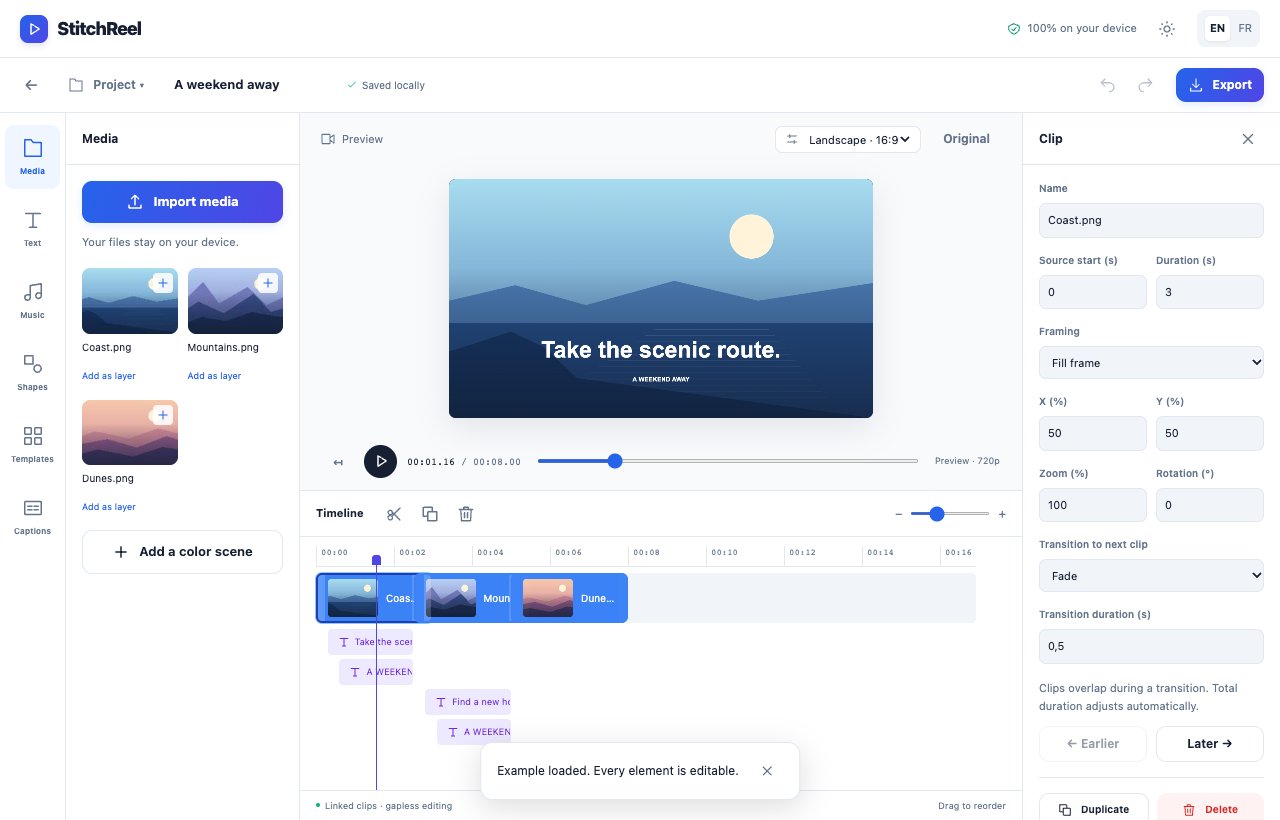
This example uses three original illustrations, animated titles and two crossfades. It has no audio; import your own music if you want a soundtrack. The preview video was exported by StitchReel, and the downloadable project contains the same edit and its images.
8 seconds · 16:9 · 1920 × 1080 project · 960 × 540 video preview · no audio
First turn your photos into a video file, then upload that file from your Facebook account. Follow this working example and replace the pictures with your own.
Open the studio, choose Landscape 16:9, then use Media to import your photos. They are added to the library and the main track. To try the workflow without your own files, open the example above.
Drag clips on the main track to change their order. Select a picture and adjust Duration (s) in its properties. Each picture in this example lasts three seconds. Check Framing: Fill frame crops the edges, while Fit entire image keeps the whole picture.
Select the first clip, choose Fade under Transition to next clip, and set the duration to 0.5 seconds. Repeat for the second clip. Transitions overlap: three three-second clips with two half-second fades make an eight-second video. Use Text to add titles and choose an entrance animation.
Import an audio file using Media or Music; the audio track is added to the edit. Adjust volume and fades in its properties. Use music you own or have an appropriate license to publish; StitchReel does not provide a music library.
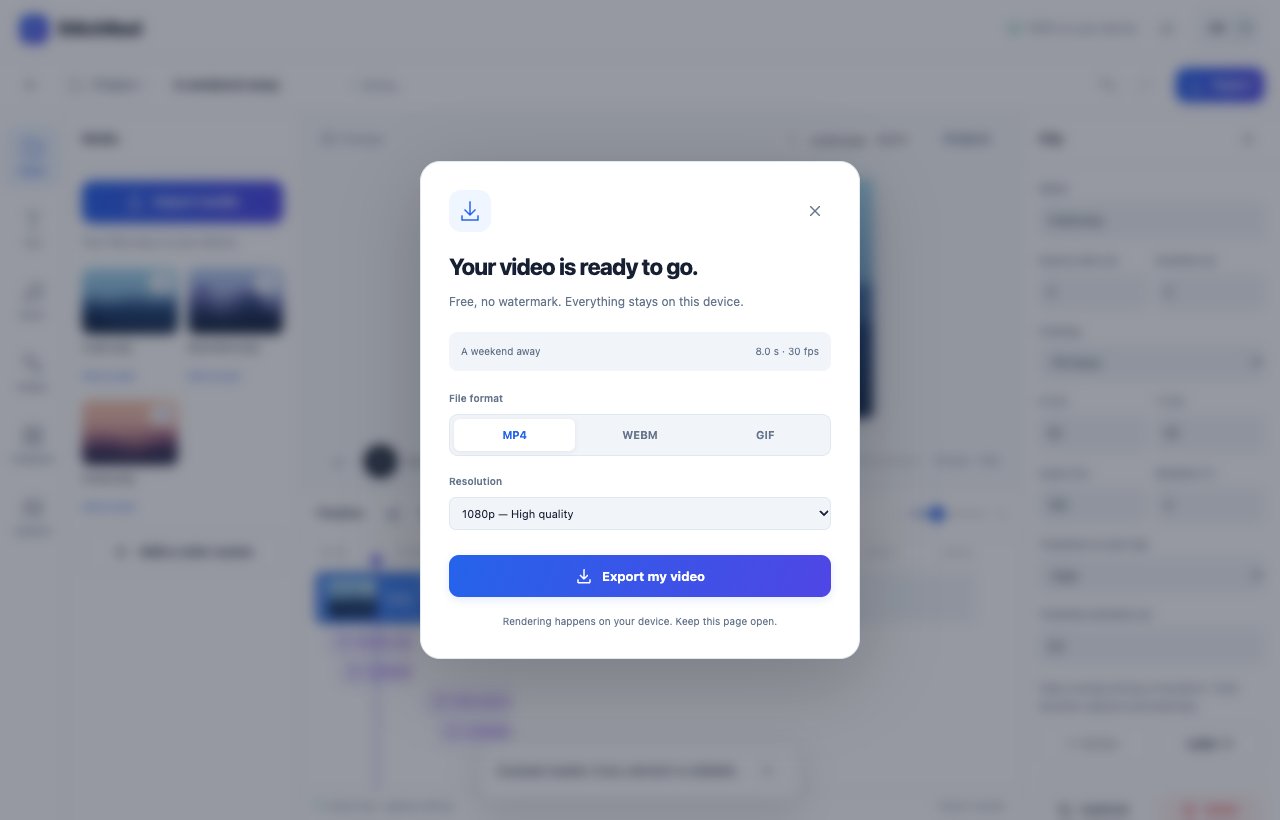
Play the edit to check every picture, title and sound. Click Export, choose MP4 and a height of 1080 for a 1920 × 1080 landscape file, if that codec is available. Your browser creates the file on your device. Download the result before leaving the studio.
From your Facebook account, add the downloaded video to your post and preview it before publishing. StitchReel does not connect to your account or publish for you. Save a .stitchreel copy from the Project menu so you can edit the slideshow again later.
Build your slideshow independently of Facebook’s own creation tools.
Combine your photos, animated text and a music track in one edit.
Photos and music are processed on your device during editing and export.
No. StitchReel creates a video file on your device. You decide where to publish it using your own Facebook account.
Yes. The studio also offers square 1:1 and vertical 9:16 formats. Choose a format for your post before adjusting how your photos fit.
Yes. Editing and exports are free, with no signup or watermark. Projects are limited to ten minutes and available formats depend on your browser’s codecs.
No. Importing, editing and rendering happen in your browser. Your latest project is saved on this device; download a project copy to keep your media and edit.
One free studio for editing, combining and animating.
Your files. Your ideas. Your video.