A 1:1 canvas from the start
The button opens the studio directly in square format.
Build a 1:1 composition for a social post, product showcase or slideshow. The studio opens with a 1080 × 1080 canvas, so you can fit your media and keep editing in one place.
Edit and export on your device.
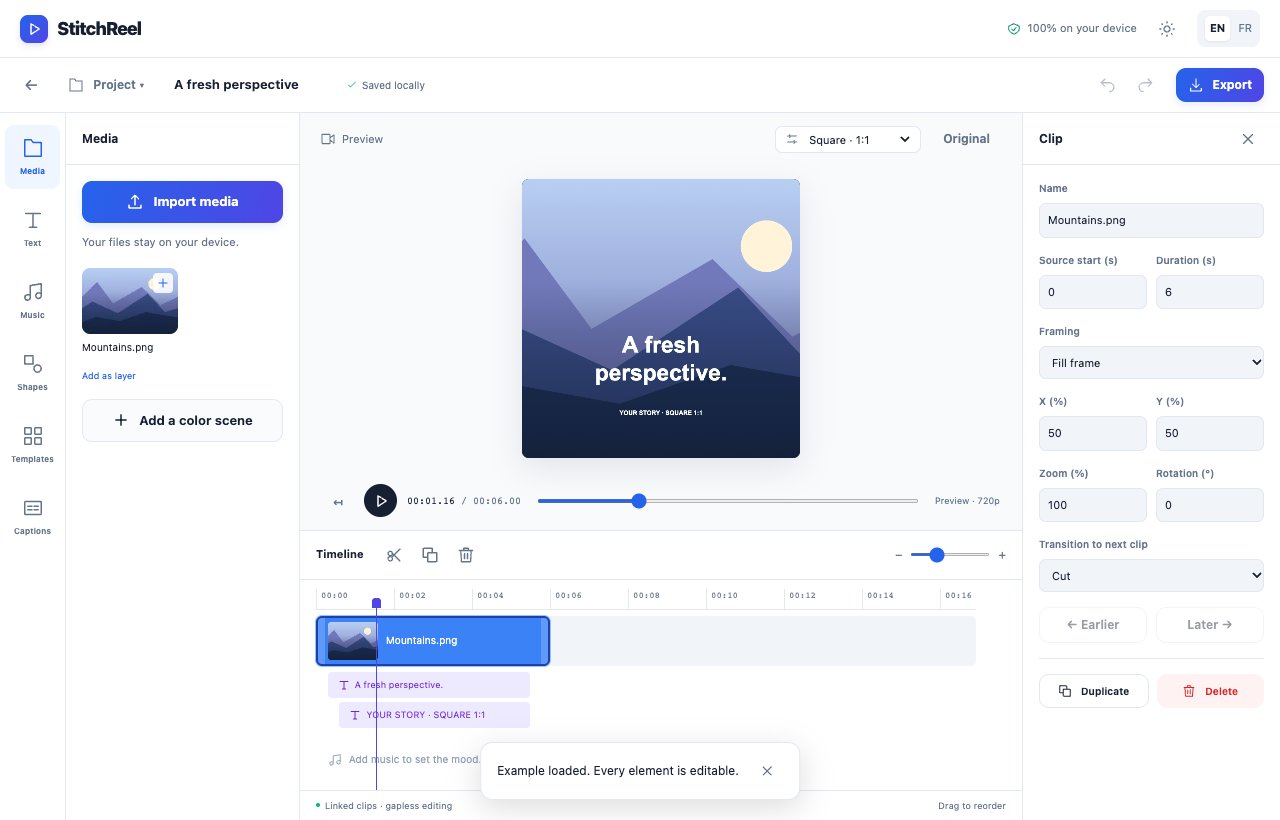
The template starts with a landscape illustration cropped into a square project with an animated title. Open the edit to compare both framing modes. The preview is a real StitchReel export with no audio, and every project element remains editable.
6 seconds · 1:1 · 1080 × 1080 project · 540 × 540 video preview · no audio
A square canvas has the same width and height. Framing is the key choice: fill the square by cropping the edges, or preserve the whole image with space around it.
Use Open the square canvas on this page. The project switches to Square 1:1 with a 1080 × 1080 canvas. You can also choose this format in the studio. Save a copy of an existing edit before changing its framing.
Use Media to import a video or picture; it is added to the main track. Select the clip and find Framing in its properties. The example uses a landscape illustration to make the difference between both options visible.
Fill frame covers the whole square and crops part of a landscape or portrait source. Fit entire image keeps every edge and leaves space around it. With Fill frame, adjust X (%), Y (%) and Zoom (%) to keep your subject visible.
Changing the aspect ratio affects the whole project. Play every clip, reposition text and check for elements outside the frame. In the template, double-click the preview title to change the text; its animations remain editable.
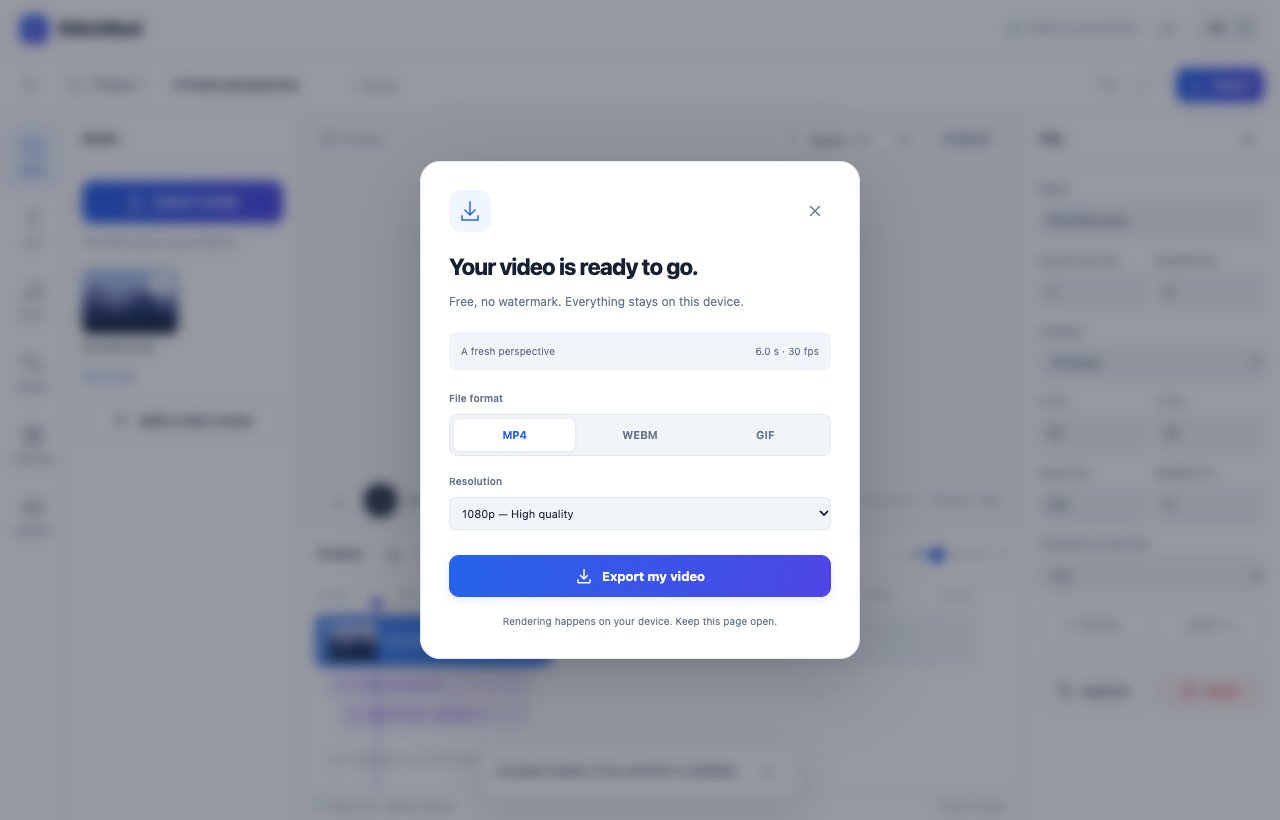
Click Export and choose a height of 1080: the 1:1 ratio produces a 1080 × 1080 file. A height of 720 produces 720 × 720. Choose MP4 if your browser offers it, or another format supported where you plan to use the video.
Download the video when rendering finishes, then play the file to check the result. Use Save a copy in the Project menu to keep a .stitchreel archive with its media and continue editing on another device.
The button opens the studio directly in square format.
Choose fill or fit for each asset and check the result in the preview.
Combine clips, photos, titles and music in a complete video edit.
Yes. Fill the square by cropping the edges, or keep the entire image with space around it. Preview each clip to check your framing.
The starting canvas is 1080 × 1080 pixels. Export keeps the square ratio, but you choose the output resolution from the options available on your device.
Yes. Editing and exports are free, with no signup or watermark. Projects are limited to ten minutes and available formats depend on your browser’s codecs.
No. Importing, editing and rendering happen in your browser. Your latest project is saved on this device; download a project copy to keep your media and edit.
One free studio for editing, combining and animating.
Your files. Your ideas. Your video.